Plan
Set the day.
Organize the roster and set today’s episodes, scenes and Day labels before shooting.
 Continuity Lookbook
For film & television crews
Organize reference photos by character, look and scene. Capture on iPhone and bring the crew’s photos together on your hub iPad.
iPhone & iPad · No login needed
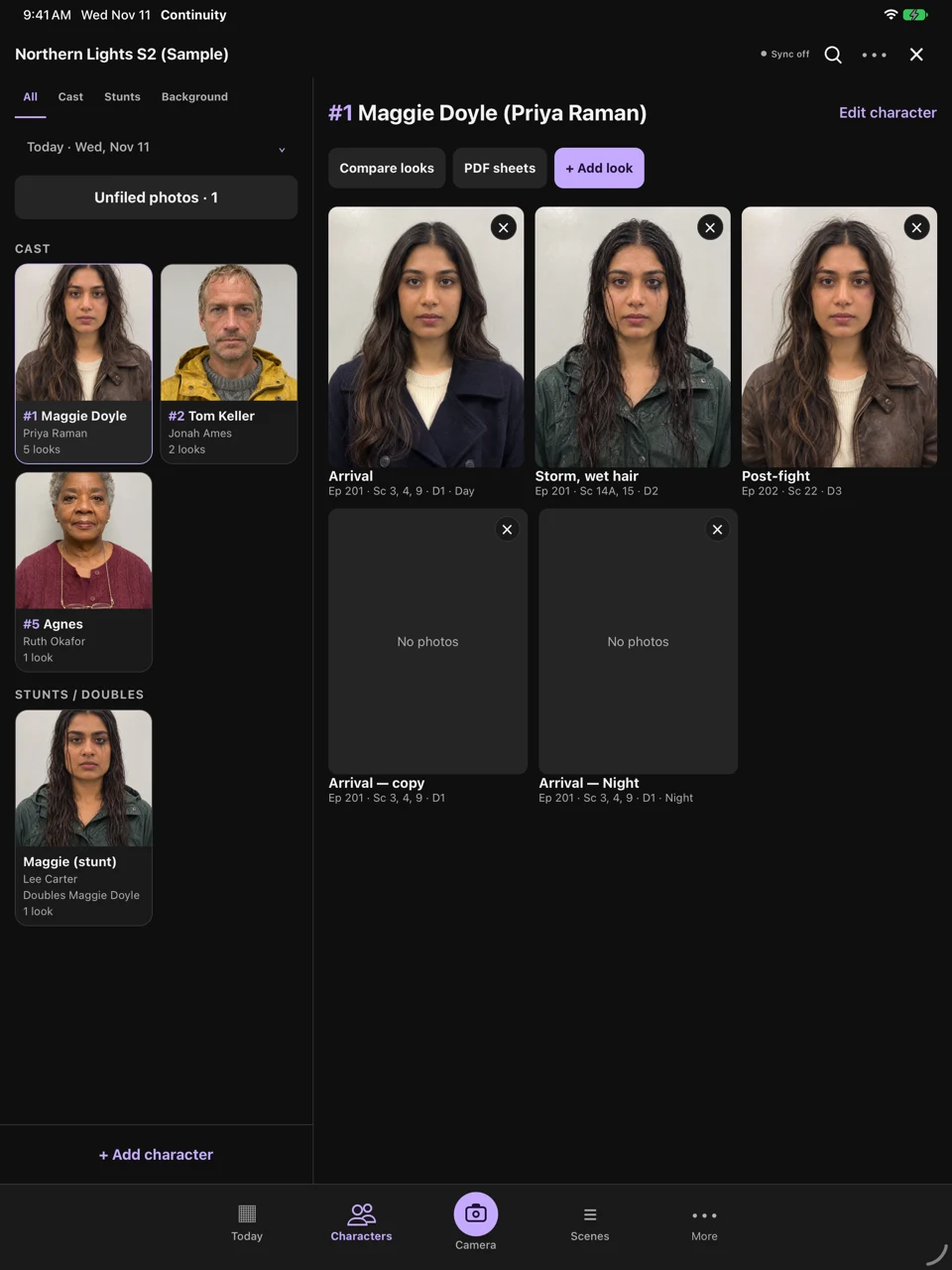
Plan
Organize the roster and set today’s episodes, scenes and Day labels before shooting.
Reference
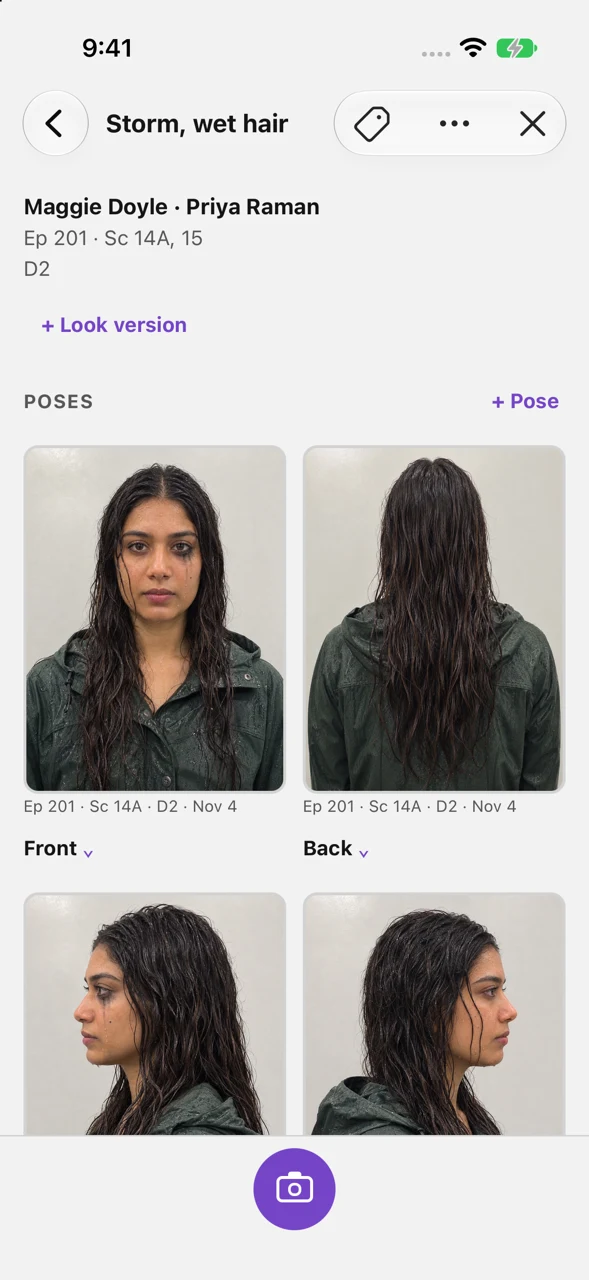
Browse characters in Grid or List, open a look, and compare photos side by side.
Sync
Invite capture phones with a QR code or sign-in code, then send photos back over local Wi‑Fi, or by AirDrop when there’s no Wi‑Fi.
Continuity doesn’t upload production photos or information to the cloud. Your hub iPad holds the master lookbook, and capture phones send their photos directly to it over local Wi‑Fi or AirDrop.
No account or login is needed. You choose when to share or export a backup and where to save it.
Read the privacy policyCompare looks
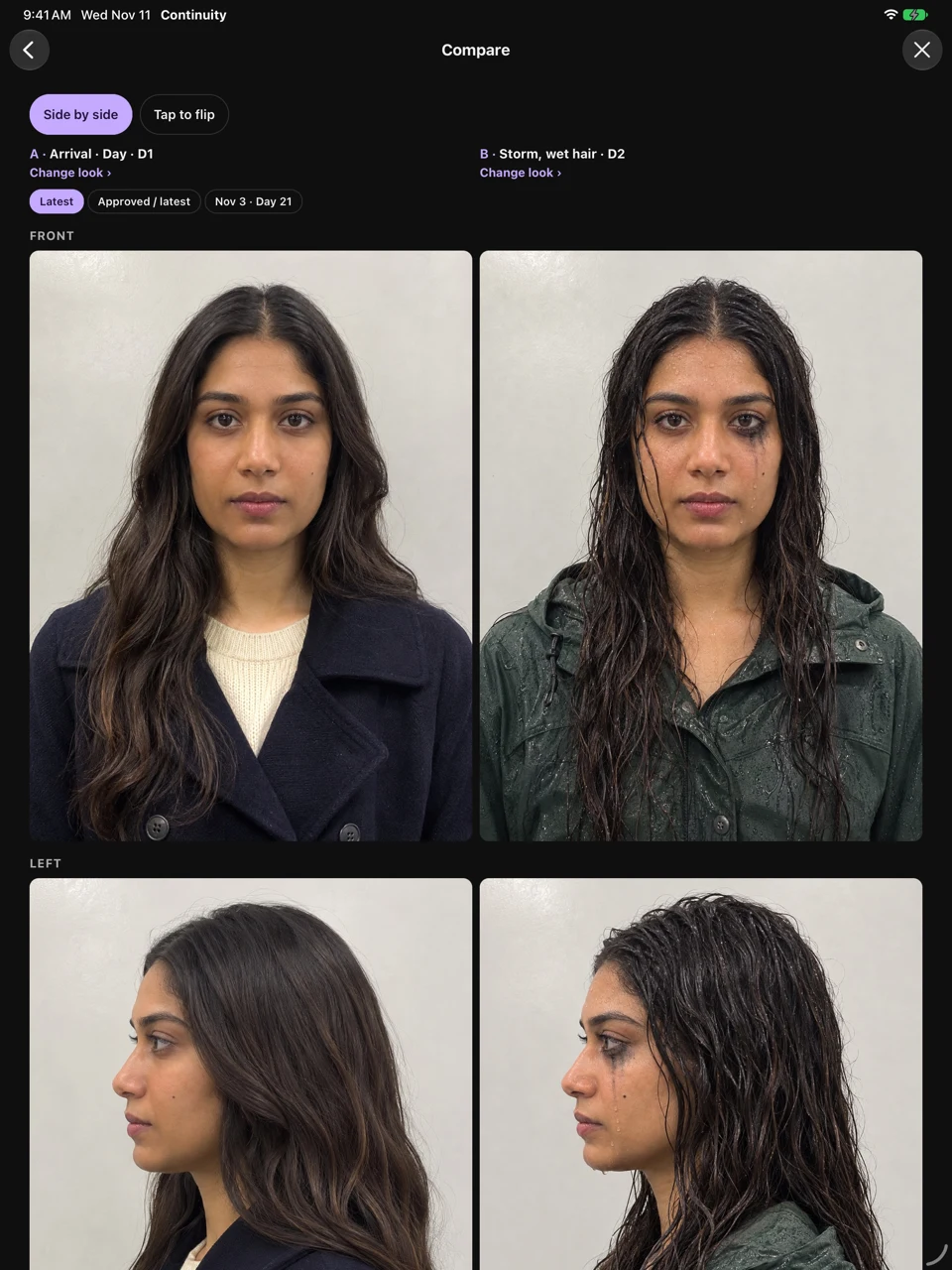
Put two looks side by side to check hair, makeup, wardrobe or other details before the next take.
Departments
Find your way around Today, Characters, Scenes and Camera.
Continuity keeps a show’s characters, looks, and photos together. The hub keeps the master lookbook. Capture phones send their photos to it. Tap Today to see what the crew is shooting. The hub can set the episodes and scenes for the day. Tap Characters to open the roster. Grid shows larger cover photos. Tap List for compact rows. Use the filters to switch between Cast, Stunts, and Background. Open a character and tap a look. The Sort menu changes the order of the looks. Use the arrows above the photos to move between looks. Tap Scenes to find a scene, or use the episode filter to narrow the list. In Camera, choose a look first if you know where the photo belongs. Otherwise, file it later from Unfiled photos. From the home screen, tap the gear to open Preferences. Inside a show, open Settings, then tap Preferences. Choose Light, Dark, or Match device. Under Look of the app, choose Studio for plain photo tiles or Instant film for framed prints with handwritten captions. Under Button colour, choose a swatch. This changes the accent across the app on this device. Thanks for watching. We hope you enjoy using Continuity Lookbook. We’d love your feedback. Send it to ken@continuitylookbook.com.
Build the roster, choose what to share and invite capture phones.
On the iPad that will hold the master lookbook, tap New show. Enter the production name and choose the department. When you’re ready, tap Create show. This iPad is now the hub. Tap Today in the bottom navigation. Tap Set up today to enter what your crew is shooting. Add the episode numbers, the scenes under each episode, and any Day labels. Scroll down and tap Save when you’re ready. In Characters, Grid gives you larger cover photos. Use the layout buttons next to the character filters. Tap List to see compact rows with names and smaller thumbnails. You can switch back to Grid at any time. Tap Add character. Choose Cast, Stunts and Doubles, or Background. Enter the character’s name and any performer or cast details, then tap Add character to save. Build this roster on the hub so your capture phones all start with the same characters. Tap Characters to open the roster. Use Cast for principal performers, Stunts for doubles, and Background for background groups. The Stunts filter shows only stunt and double entries. Background shows the folders for background groups. Tap All to return to the full roster. Choose a character to see their looks. Tap a look to open its photos. Use the left and right arrows above the photos to move through that character’s looks. The title and look number update as you move between looks. Tap Scenes to find a scene. Type the scene number in Find a scene. If several episodes use the same scene number, tap All episodes and pick the one you want. Open a character and tap Set cover photo. Pick a photo to use as the cover for that character. Open the three-dot menu in your show, then tap Settings. Show settings apply to this lookbook. Preferences are for this device. Under Devices and sync, turn on Share character covers to send small thumbnails of the covers you set. Leave it off if you only want to share the character roster. When a capture phone joins or refreshes its roster, it receives the approved character list. Full looks and original photos stay on the hub. With sharing on, the roster can include cover thumbnails. You can turn covers off for individual phones in Connected phones. From the home screen, tap the gear to open Preferences. Inside a show, open Settings, then tap Preferences. Choose Light, Dark, or Match device. Under Look of the app, choose Studio for plain photo tiles or Instant film for framed prints with handwritten captions. Under Button colour, choose a swatch. This changes the accent across the app on this device. In Preferences, scroll to This device. Enable Date and time on photos to show when each photo was taken on its label, including labelled shares and prints. The original capture time is kept either way. From your show, open the three-dot menu. Tap Connected phones. Tap Connect a phone. You can return here any time to add another crew member. Name the phone so you’ll recognize it later. Then tap Generate sign-in code and wait for the code to appear. Ask the crew member to scan this QR code or enter the sign-in code. Keep both apps open on the same Wi-Fi. The invitation works once and expires in five minutes. Thanks for watching. We hope you enjoy using Continuity Lookbook. We’d love your feedback. Send it to ken@continuitylookbook.com.
Connect to the hub, tag photos and send your work back to the show.
On your capture phone, open Continuity. On the home screen, tap Join a show with a code. Keep both devices on the same Wi-Fi and allow Local Network access. Tap Scan QR code, or enter the code from the hub and tap Join show. Once you join, the hub sends the character roster. The hub’s full looks and original photos stay there. You may see cover thumbnails if the hub enables sharing. Once you’re in the show, tap Today to check the day’s plan. The hub can set the episodes and scenes for the crew. Use Grid in Characters when you want larger cover photos. Use List for compact rows with names and smaller thumbnails. Tap Characters to open the roster. Use Cast for principal performers, Stunts for doubles, and Background for background groups. The Stunts filter shows only stunt and double entries. Background shows the folders for background groups. Tap All to return to the full roster. Choose a character to see their looks. Tap a look to open its photos. Use the left and right arrows above the photos to move through that character’s looks. The title and look number update as you move between looks. Tap Scenes to find a scene. Type the scene number in Find a scene. If several episodes use the same scene number, tap All episodes and pick the one you want. From the main Camera tab, new photos go to Unfiled photos. If you know the destination, tap Choose a look before taking the photo. Open the photo details to add an episode, a scene, and a Day label. Tap Use these details when you’re ready. When you’re ready to send your work, tap More, then Send photos. Tap View waiting photos to see your queue. This example hasn’t paired yet. Send to hub appears after pairing when the hub is nearby. These are the photos waiting to go. Return to Send photos to send them. Keep both apps open until Continuity confirms delivery. From the home screen, tap the gear to open Preferences. Inside a show, open Settings, then tap Preferences. Choose Light, Dark, or Match device. Under Look of the app, choose Studio for plain photo tiles or Instant film for framed prints with handwritten captions. Under Button colour, choose a swatch. This changes the accent across the app on this device. In Preferences, scroll to This device. Enable Date and time on photos to show when each photo was taken on its label, including labelled shares and prints. The original capture time is kept either way. Thanks for watching. We hope you enjoy using Continuity Lookbook. We’d love your feedback. Send it to ken@continuitylookbook.com.
Yes. Your lookbook is stored on your device, so you can capture, organize, search and compare photos with no signal. Capture phones send photos to the hub iPad over the Wi‑Fi network the devices share, or by AirDrop when there is no Wi‑Fi. Neither uses a cloud service.
On your own devices. Continuity Lookbook does not upload production photos or information to our servers. Photos only leave a device when you share them, export a backup or send them to your paired hub. See the privacy policy.
Yes. Set up an iPad as the hub for the show, then invite capture phones with a QR code or sign-in code. When the devices are on the same Wi‑Fi, phones send their photos to the hub, which can review incoming photos before filing them. With no Wi‑Fi, phones can AirDrop their photos to the hub instead.
Send looks and photos by AirDrop. A capture phone can AirDrop its photos straight to the hub iPad, and they arrive with their character, look and scene labels. The hub can AirDrop a receipt back so the phone marks exactly those photos as sent. You can also AirDrop a whole show backup to another iPad or a laptop.
Continuity Lookbook is free to download from the App Store for iPhone and iPad. No account is needed.
All frequently asked questions → How to take continuity photos →